

// introduction
Cloud storage is supposed to make life easier. You save the file, someone else opens it, everyone works from the same folders. No flash drives, no emailing documents back and forth, no wondering which version is newest. Everything is synced. Everything just works. Until it doesn't.
Recently I dealt with a real OneDrive problem for a business that depended on shared folders every single day. This wasn't a "my file disappeared once" situation. It was the kind of issue that quietly interrupts work, slows people down, and makes a whole team stop trusting their own file system.
The strange part? On the surface, everything looked right. The folders were shared. The permissions seemed correct. The user had access. Some files worked. Online links worked. The cloud version looked fine. But the local OneDrive sync on the desktop still wasn't behaving — and that's where the real story begins.
// partially_broken()
"Partially Broken" Is the Worst Kind of Problem
When people hear "OneDrive problem," they assume it's simple: not signed in, internet's off, folder wasn't shared, a restart will fix it. Sometimes it is that simple. This wasn't.
One user's computer was acting as if it was disconnected from the rest of the system — but not completely disconnected, which would have been easy to diagnose. Partially disconnected. When something fails completely, at least you know where you stand. When it works sometimes, syncs sometimes, opens sometimes, and then quietly fails again, you get pulled into a grey area where the problem is hard to prove and harder to explain.
At times the user could open the folders online. At times co-editing worked. Some files appeared where they should. But the local folder wasn't consistently syncing the shared business folders the way the team needed. So the staff could no longer fully trust what they were seeing on their own machines. In a business, that's a serious problem.
// why_it_matters()
Why a "Small" Sync Issue Is Actually a Big Deal
If you run a business, your files aren't just files — they're your workflow. Invoices, client records, quotes, contracts, payroll, project folders, proof of work. Your daily operating system, even if you don't call it that. So when sync breaks, the damage isn't only technical — it lands on people:
Someone updates a file, but someone else never sees it.
Someone creates a folder that never appears for the team.
Someone thinks work is saved, but it's sitting on one machine.
"Did you not get the file?" → "It's not showing on my side."
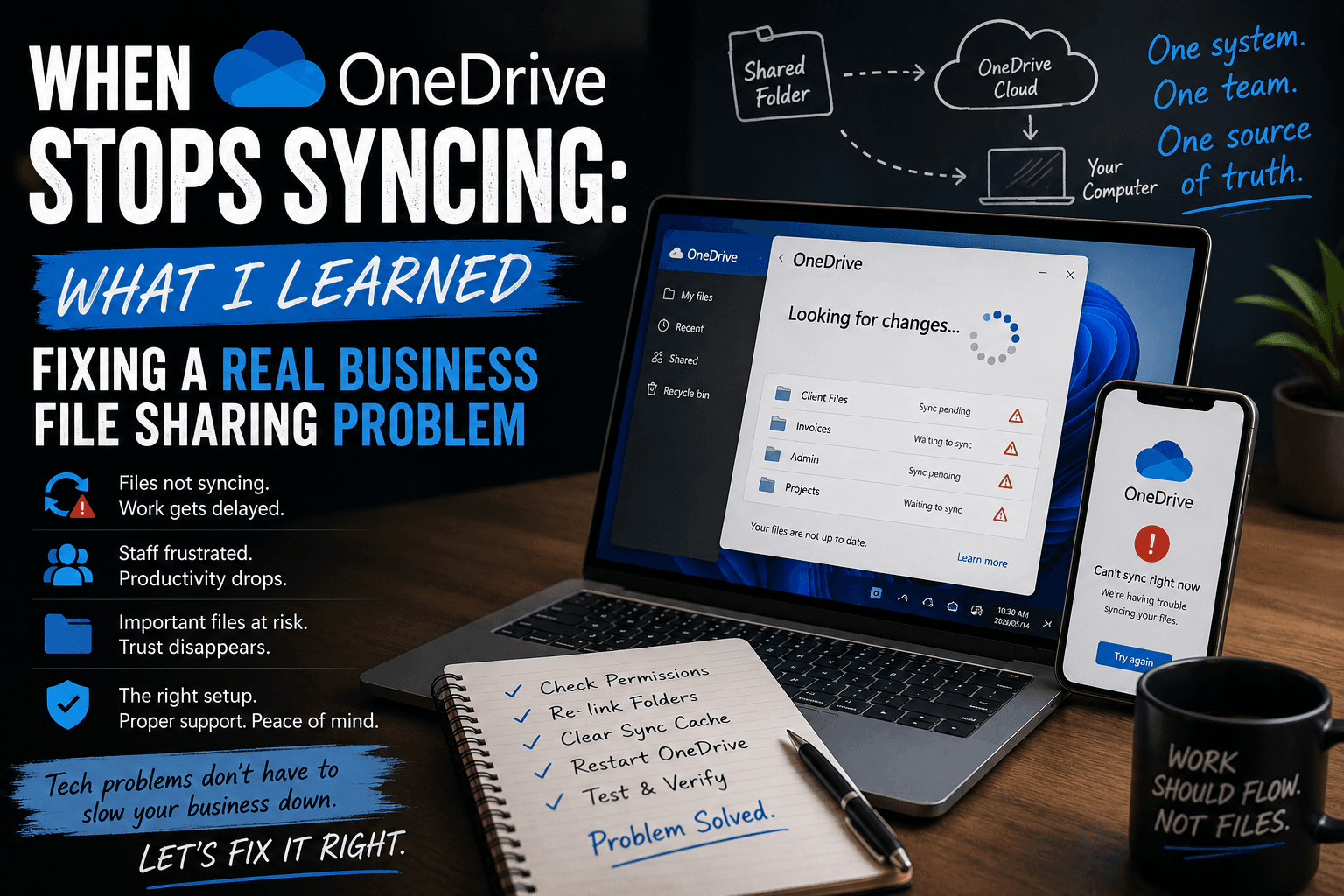
Suddenly the conversation changes from work to troubleshooting. That's lost time, frustration, and uncertainty — and for a small business, uncertainty is expensive. The team still has to work, clients still need answers, payroll still has to run. The business doesn't stop just because OneDrive is "looking for changes." But while that little message sits there, people wait.
// online_is_not_fixed()
"It Works Online" Does Not Mean "It's Fixed"
This was the biggest lesson. A lot of people assume that if the files are visible in the browser, OneDrive is fine. It isn't always. The browser version and the synced desktop version are related, but they're not the same thing. The browser simply shows what exists in the cloud. The desktop sync client has to maintain a live relationship between the computer and that cloud version — and that relationship can stall, duplicate, or get confused while the cloud copy looks perfectly healthy.
So "but I can see it online" is useful information — it does not prove the local sync is healthy. Some staff happily work in the browser while others work straight from File Explorer: open folders, drag files, rename, save, and expect it all to sync in the background. When that local sync is broken, you end up with two realities — the online version, and the version one person sees on their PC. That gap is exactly where mistakes happen.
// diagnostic_path()
The Diagnostic Path That Actually Works
With a problem like this, "Can the user open the folder?" is too basic a question. You have to look at the whole chain, and in roughly this order:
Find the source of truth
Who owns the original folder? Is it shared directly, through a shortcut, or as a synced SharePoint/Teams library? Most messy setups come from mixing these.
Confirm real permissions
Not just "can open," but can the user create a file online and have it appear for others?
Decide: does it follow the computer or the account?
Sign the same user in elsewhere. If it's clean there, the problem is local to that machine, not the cloud.
Check the local client's health
Is OneDrive genuinely stuck "processing changes," are there duplicate local folders, or is Windows still pointing at an old path from a previous link?
Fix it at the root, not the symptom
When the local relationship is the problem, the reliable sequence is: unlink the account, clear the OneDrive cache / reset the client, remove stale duplicate folders and old shortcuts, then re-add the shared library cleanly — using the right method (adding a shortcut to a shared library behaves very differently from syncing the whole library, and picking the wrong one is a common cause of exactly this instability).
Watch for content OneDrive dislikes
Over-long paths, invalid characters in file names, or a connection too slow to complete a large initial sync.
// The trap: "remove and relink" often makes everything lookfixed — files sync, folders appear, the system looks clean. Then it comes back, because the underlying setup was still fragile. That's the signal you're dealing with a sync-state problem, not a one-off glitch.
// not_maintenance_free()
Cloud Storage Is Powerful — But It Is Not Maintenance-Free
OneDrive, Google Drive, Dropbox, SharePoint — all genuinely useful. But they come with a dangerous assumption: "it's in the cloud, so we don't need to manage it." Not true. Cloud storage still needs structure: clean folder ownership, clear permissions, naming rules, real backups outside the platform, an agreed place for staff to save things, and a plan for when employees join or leave. Without that, the system slowly gets messy — and messy cloud storage is dangerous precisely because it works just well enough to hide the problem. Until one day it doesn't, and everyone suddenly needs answers at once.
This isn't an attack on OneDrive. It works well — it's affordable, integrates with Microsoft 365 and Office, and beats an old local file server for remote access. But if you're using it as your business's whole file system, the setupmatters: account structure, folder structure, sync method, how users reach shared folders, and who maintains it. You can't just randomly share folders between accounts and hope it stays clean as the business grows. Reliable infrastructure — proper managed hosting and backups included — is what keeps the day running.
// dont_wait()
The Real Lesson: Don't Wait Until It Breaks
If your business runs on shared folders or synced documents, don't wait for a failure to take it seriously. Ask now:
▢Who owns the main business folders, and is everyone working from that single source of truth?
▢Are the folders shared correctly, with a structure everyone actually follows?
▢Do you have backups outside of OneDrive?
▢What happens if one computer dies — or one user leaves the company?
▢Can staff still reach files in the browser if desktop sync fails?
▢Are there duplicate folders quietly confusing people?
These questions aren't exciting, but they're the difference between a small problem and a business interruption.
// the_whole_picture()
A Studio That Looks at the Whole Picture
At DukePaw Studio, I don't only look at technology from the surface. Yes, I build websites — but a website is just one part of a working business setup. Your files need to sync. Your email needs to work. Your domain needs to be safe. Your hosting needs to be stable. Your backups need to actually exist. Your staff need access to the right tools.
When one of those breaks, it affects the whole day — and that's the work I genuinely enjoy: taking something frustrating and making it understandable again, turning chaos into a system people can trust. Sometimes that starts with something as small as a OneDrive folder that refuses to sync.
The cloud is powerful, but it isn't magic. If your team is constantly asking where files are, which version is correct, or why one computer sees something different from another, that's not just an inconvenience — it's a warning sign. Your file system is part of your business foundation, and foundations matter. When the foundation is solid, people stop worrying about the system and get back to doing the work.
// frequently_asked_questions()
Frequently Asked Questions
Why does OneDrive work online but not sync on the desktop?
The browser simply shows what exists in the cloud, while the desktop sync client has to maintain a live relationship between your computer and that cloud version. That local relationship can stall, duplicate, or get confused while the cloud copy still looks perfectly healthy. So being able to see a file online does not prove the local sync is working.
How do I fix OneDrive when a shared folder won't sync?
Find the real source of truth and how the folder is shared, confirm the account can create files online that appear for others, then test whether the issue follows the computer or the account. If it's local, unlink the account, reset the OneDrive cache, remove stale duplicate folders and old shortcuts, and re-add the shared library cleanly using the correct method. Fix it at the root rather than just relinking, which often hides the problem temporarily.
Is it enough that files are visible in the OneDrive browser version?
No. Files being visible online only confirms the cloud copy exists. Many staff work directly from File Explorer, expecting changes to sync in the background. If that desktop sync is broken, you can end up with two realities — the online version and the version one person sees on their PC — which is exactly where mistakes happen.
Does cloud storage like OneDrive still need to be managed?
Yes. Cloud storage still needs clean folder ownership, clear permissions, naming rules, real backups outside the platform, an agreed place for staff to save files, and a plan for when employees join or leave. Messy cloud storage is dangerous because it often works just well enough to hide the problem until it suddenly fails.
What should a small business do before its file sync breaks?
Confirm who owns the main business folders and that everyone works from one source of truth, make sure folders are shared correctly with a structure people follow, keep backups outside of OneDrive, and plan for a computer dying or a user leaving. Prevention is far cheaper than recovering from a business interruption.